

I’ve seen advertisements that use this magical technique using Photoshop and other programs that go over most people's heads. I decided to try to find a technique to do it using my favorite program, Procreate.
Now you can make your Pinterest pins, Instagram Stories, and YouTube thumbnails look like magic and feel proud every time you look at it! So in this tutorial, learn two ways to put any print inside your text using Procreate on your iPad! Turn any text into glitter, and put animal print into your text along with any type of texture!
Visual learner? Scroll to the bottom for the step-by-step video tutorial.
Create a New Canvas
Choose any size canvas, depending on your project.
Add Your Text
1. Tap the “wrench icon” then select the ”Add” tab.
2. Select “Add Text”. Select your favorite font. I used "Impact".
3. After adding your text, select “Edit Style” and enlarge the text to your preference by dragging the anchor points outward.
Import and Position Your Image
1. Save your image to your photo gallery for easy access.
2. Insert the Image in Procreate
3. Tap the “wrench icon” again, go to “Add”, and choose “Insert a Photo”.
4. Select your image. I’m using a glitter image. Use the anchor points to resize it so it fully covers the text.
Create a Text Effect
1. In the “Layers” panel, drag your photo layer beneath your text layer. This arrangement will allow the glitter to show only where the text is.
2. “Select the Text” - Tap your text layer and choose “Select” from the drop-down menu. This step selects the text area, so the photo effect only fills these parts.
3. “Copy the Photo” - With the text selected, tap on your photo layer, then press “Copy”. Go back to the wrench icon, and select “Paste”. You may not see immediate changes, but if you look in your layers, you'll find a new layer with the photo in the text shape. Hide the original photo layer to reveal the photo-filled text layer underneath.
Add a Drop Shadow for Extra Depth (Optional)
1. Select the original text layer and move it slightly to one side to create a shadow effect.
2. Create a new layer between the glitter and shadow text. Use a brush to fill any empty spaces for a cohesive look.


Pin It!
If you love this project, don’t forget to pin it on Pinterest so you can easily find it later and share it with others! It’s a great way to organize your favorite ideas and inspire your next creation.
Support It!
If you've enjoyed our time together and would like to support my work, a small gesture like buying me a “cup of coffee” goes a long way!

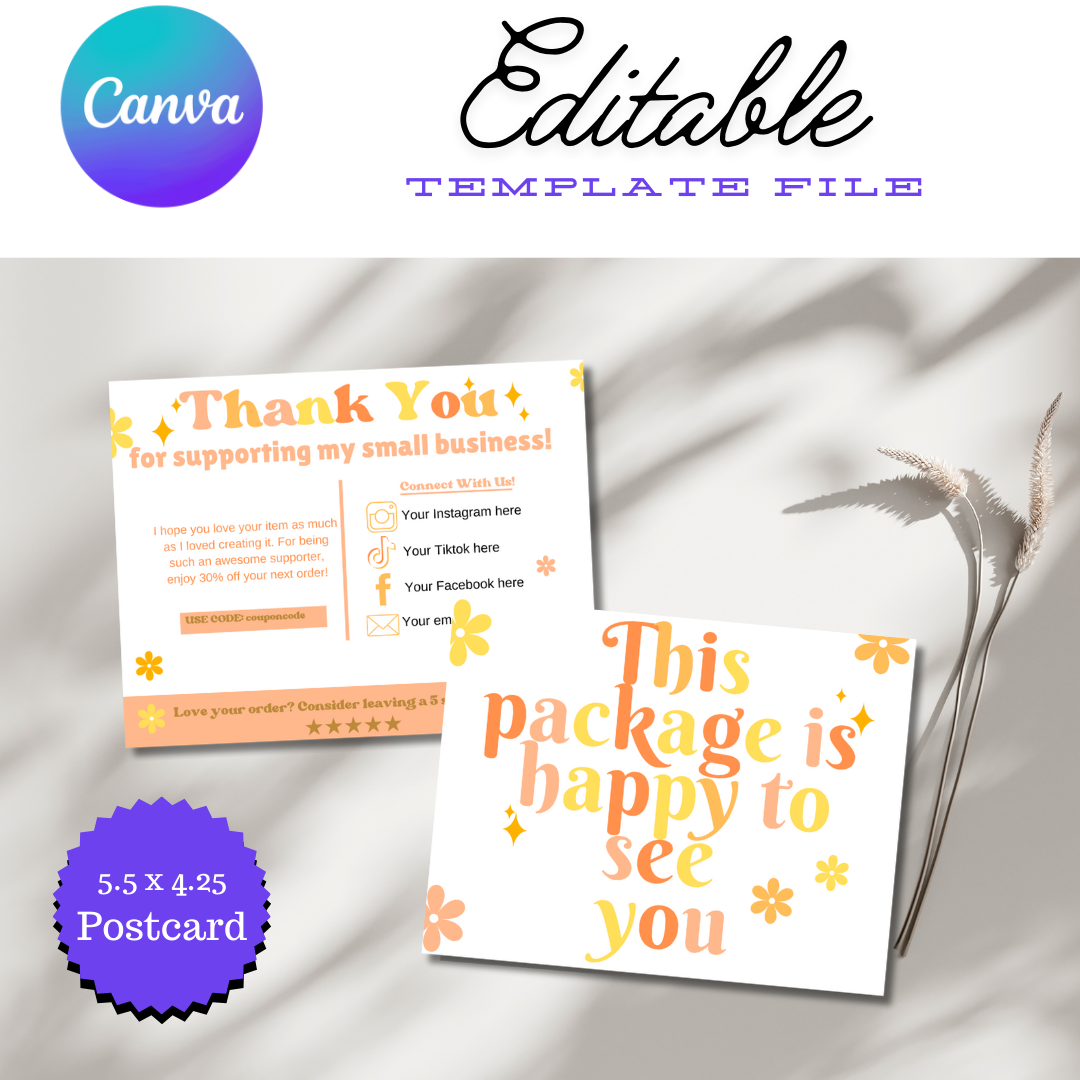
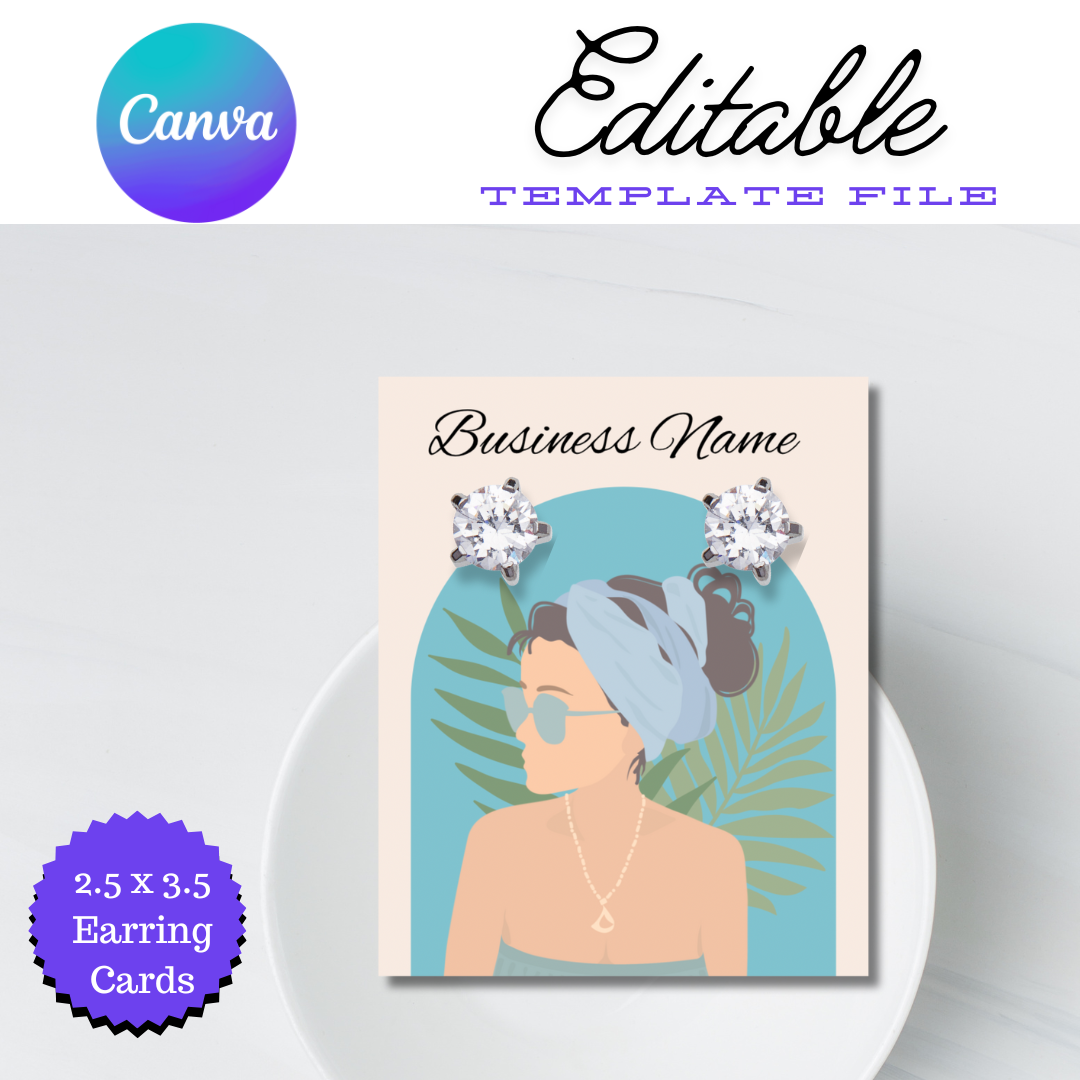

Upgrade your customer engagement and boost your sales today.
Our easy to customize thank you card template is the perfect way to show your appreciation and encourage repeat business. Add a personal touch by including a discount for their next purchase.
NOTE
💻 This is a Digital product.
❌ Not a Physical product.
Canva template.
You will need a free Canva account to open and edit the template.
Use your computer or the Canva App on your phone. (computer is recommended!)
Fully customizable.
All fonts are completely editable (you can change the font style, size, or color).
Add, delete, or reposition/resize any elements you see.
Add your own logo, photos or images - just drag and drop.
Make Unlimited edits with no expiration!
Due to the digital nature of this item, it is non-refundable.
Your business is granted a non-transferable license to use our digital products.
No Resale or Redistribution: You may not resell, redistribute, or share the templates, designs, or elements included in any format.
No Profit from Design: You cannot profit from the design itself, whether by selling it or using it to create products for sale.
Limited Modification: You may modify the design for your own business use, but you may not resell or distribute the modified design.